
Customer Support
Stop getting vague bug reports. Learn how to get customers to record their screen for support and receive everything your team needs to fix issues fast.

•
•

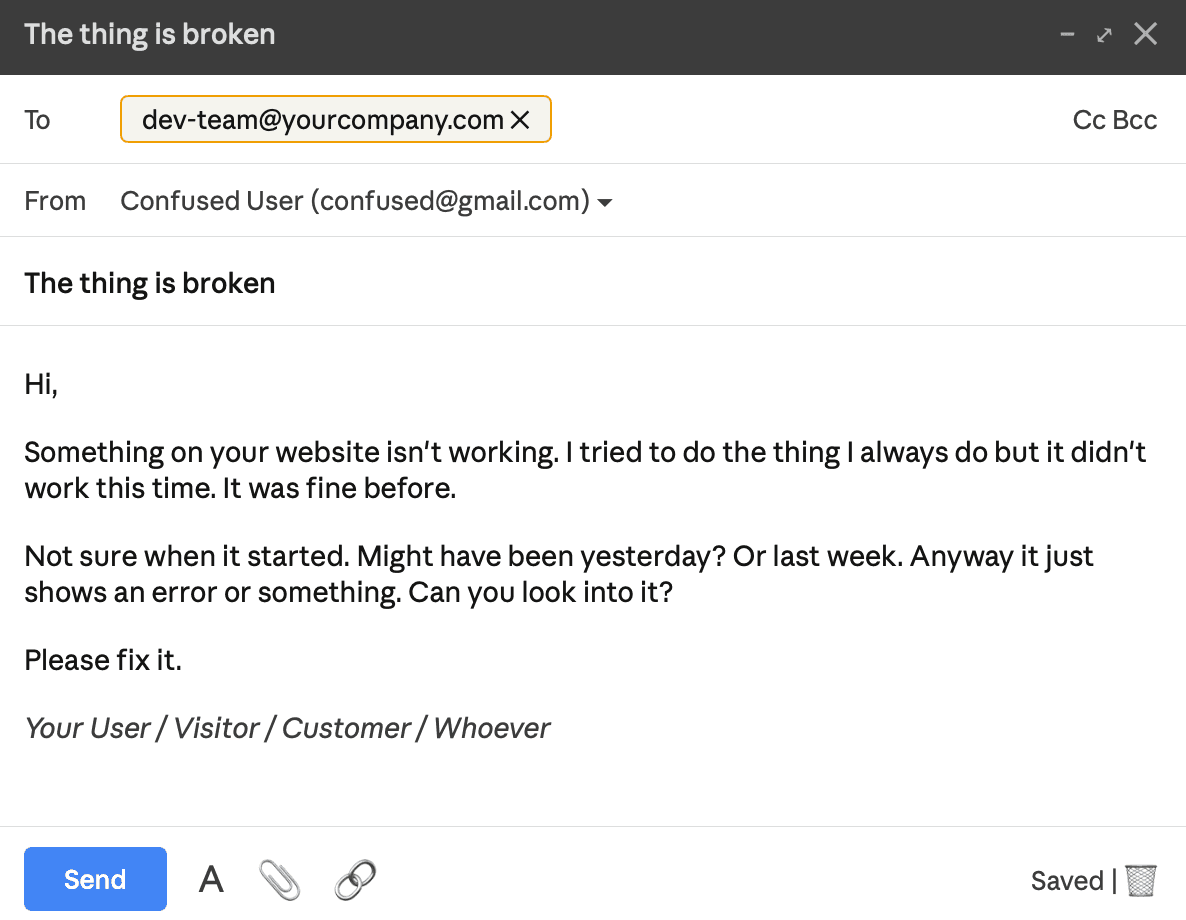
You know the feeling. A customer says something is broken. You ask them to explain. They send three sentences that raise more questions than they answer. You ask for a screenshot. They either cannot figure out how to take one or send something that does not show the right thing.
The problem is not the customer. The problem is that asking someone to describe a technical issue in writing is the worst possible way to understand it. A screen recording solves this instantly. The question is how to get customers to actually send one without it becoming another source of friction.
Why Screen Recordings Beat Everything Else
A screenshot captures one moment. A text description captures whatever the customer thinks is relevant. Neither gives you the full picture.
A screen recording shows exactly what happened in the exact order it happened. Your team watches 30 seconds of video and understands the issue immediately. No interpretation. No follow up. No back and forth.
For support teams handling bug reports, unclear tickets and customer frustration all at once this is not a nice to have. It is the single biggest lever for cutting resolution time. For a deeper look at how leading support teams handle bug reporting and escalation read our customer support complete guide.
Why Customers Do Not Send Recordings
Before fixing the problem it helps to understand why customers do not send recordings in the first place.
It is not laziness. It is friction.
When you ask a customer to record their screen here is what you are actually asking them to do. Find their screen recorder. Figure out how to start it. Record the right thing at the right moment. Stop the recording. Find the file. Compress it if it is too large. Upload it somewhere. Send it to you.
Most customers drop off somewhere in that process. The ones who make it through often send the wrong thing. They recorded their desktop instead of their browser. They captured the moment after the bug not during it. The file is too large to send.
The result is the same either way. You get nothing useful and the back and forth continues.
If you want to share a simple guide with your customers on how to record their screen on any device send them our guide on how to record your screen for customer support.
How to Ask Customers to Record Their Screen
The way you ask makes a significant difference to how many customers actually do it.
Be specific about what you need. "Can you send a recording?" gets ignored. "Can you record your screen for 30 seconds showing me exactly what happens when you click the checkout button?" gets results. The more specific the ask the easier it is for the customer to know what to do.
Remove the file sending problem. Large files are where most customers give up. Tell them to upload to Google Drive or Dropbox and share the link instead of attaching the file directly. One sentence explaining this removes a drop off point most support teams never think about.
Ask at the right moment. The best time to ask for a recording is immediately after a customer first reports an issue. Not after two exchanges. Not as a last resort. First response. It sets the expectation upfront and gets you what you need before the customer loses patience.
What to Tell Customers to Include Alongside the Recording
A recording alone is useful. A recording with a short note is significantly better.
When asking a customer to send a recording include these four questions in the same message:
What were you trying to do when this happened?
What did you expect to happen?
What actually happened?
Does this happen every time or only sometimes?
Most customers answer these in two or three sentences. Combined with the recording your team has everything needed to act immediately without a single follow up question.
For a full set of structured templates your team can use when escalating issues read our Jira bug report templates.
The Simplest Way to Collect Screen Recordings From Customers
The device by device approach works but it has a ceiling. You are still relying on customers to follow multi step instructions on hardware you cannot see. And even when they successfully send a recording it arrives with no technical context attached. No browser information. No OS. No URL. Just a video.
This is exactly what Bugtrotter was built to solve. Instead of asking customers to find their screen recorder and figure out how to send the file you send them a single link. They click it, a recording interface opens directly in their browser, they show you what is broken and hit submit.
Three ways to collect recordings with Bugtrotter:
Widget: A button that lives inside your product. When a customer hits an issue they click it, record and submit without leaving the page.

Share a magic link: Generate a unique link from your dashboard and drop it into your support conversation. The customer clicks, records in their browser and submits. Two steps, no download required.
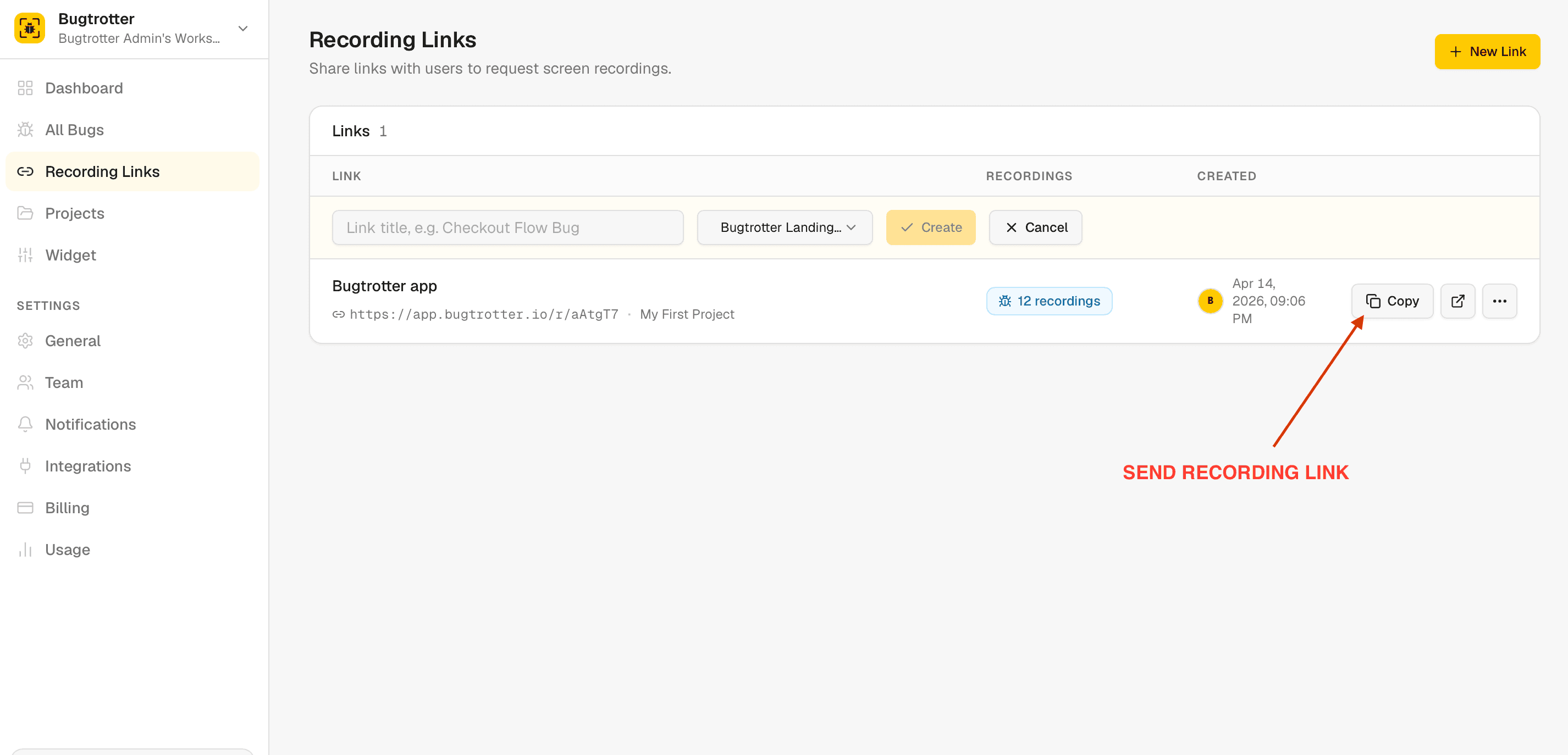
Send a recording link: Record directly inside the Bugtrotter app to show a customer how to do something, a walkthrough, a fix, a step by step guide and share it instantly without worrying about file sizes.
Every submission automatically includes browser type, OS, screen resolution and the URL the customer was on. Your team gets the full picture without asking a single follow up question.
Traditional Method vs Bugtrotter
Asking Customers to Record | Bugtrotter | |
|---|---|---|
Steps for the customer | 7+ | 2 |
Download required | Yes | No |
Technical context captured | No | Yes automatically |
File size issues | Common | Never |
Time to receive recording | Hours | Seconds |
Follow up questions needed | Almost always | Rarely |
Getting customers to record their screen does not have to mean chasing files and hoping they figure out their built in screen recorder. A specific ask, a low friction way to send the file and clear instructions on what to include gets you most of the way there.
If you want to remove the friction entirely and receive recordings with full technical context automatically try Bugtrotter for free.
And if you want to improve the quality of bug reports your team receives before they even get to a recording read our guide on how to write a bug report your customers can use.
View more articles
Learn actionable strategies, proven workflows, and tips from experts to help your product thrive.